
Use a calendar event for things on the schedule that aren’t customer work: meetings, training, vehicle maintenance, time off. Events show on the calendar alongside job visits.
Create an event
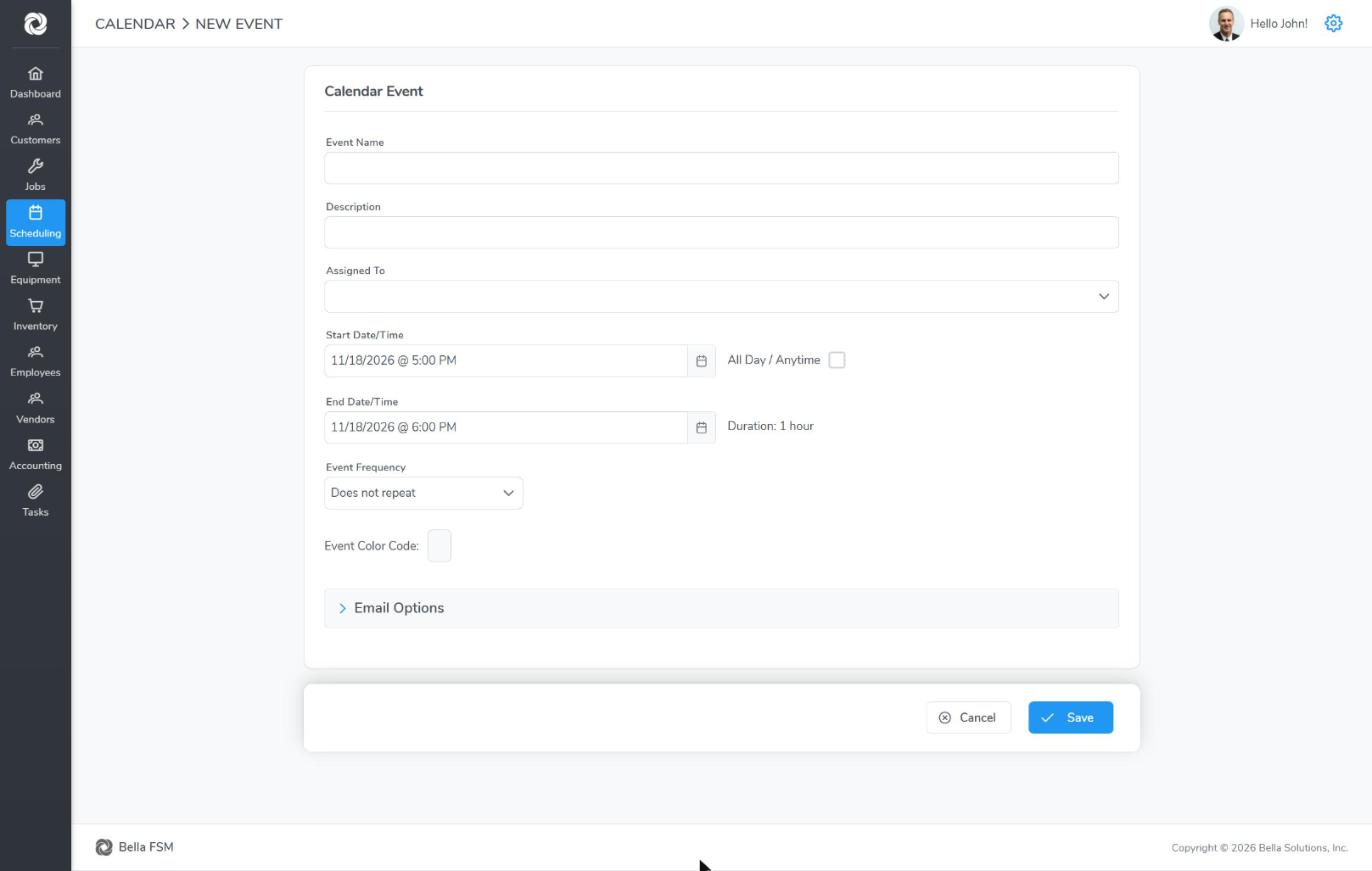
- Click Scheduling in the left menu, then New Event.
- Enter an Event Name and, if you like, a Description.
- Choose who it’s for in Assigned To.
- Set the Start Date/Time and End Date/Time, or tick All Day / Anytime.
- To repeat it, choose an Event Frequency, the same choices as recurring jobs.
- Pick an Event Color Code so it stands out on the calendar.
- Open Email Options to email the people involved, then click Save.
To change or delete an event, click it on the calendar. See Scheduling Overview for the calendar views.